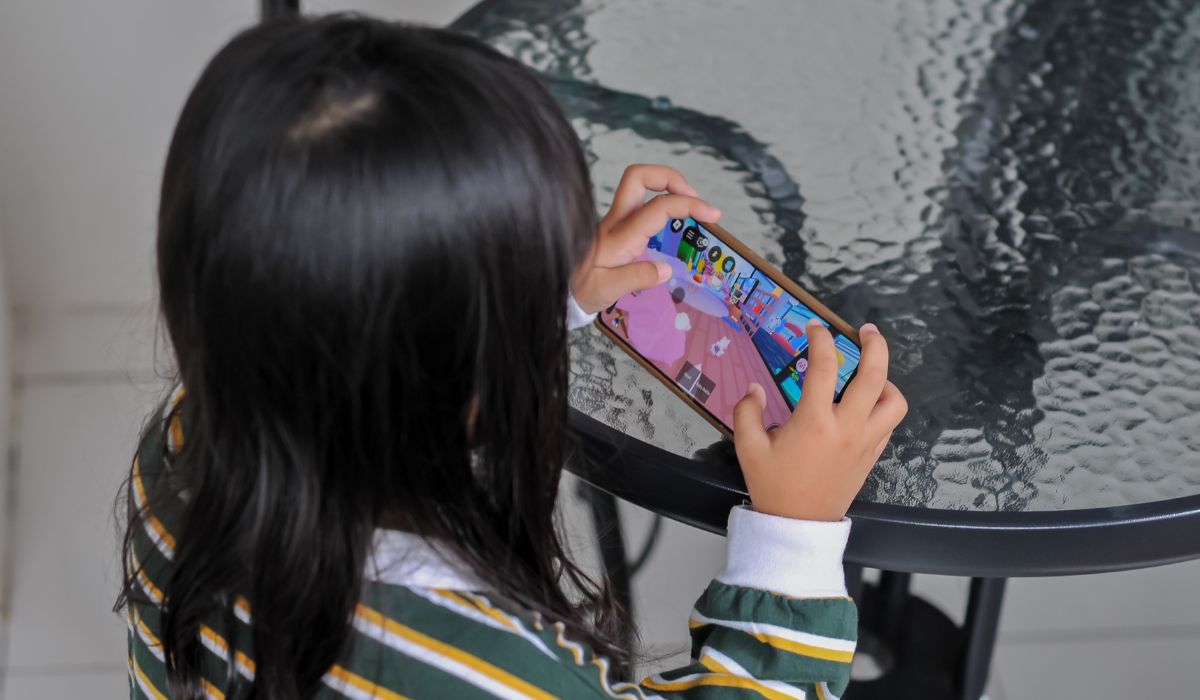
Roblox is still a massive sensation, with over 100 million daily users, but it has come under fire time and time again for its potential dangers.
Games like Roblox have become incredibly popular in recent years, but many of us are aware of the dangers and inappropriate content that kids can be exposed to when using them.
However, things are now a whole lot safer as two new age restrictions have been put in place as of this month. According to the founder and chief executive of Roblox, David Baszucki, two new age-based accounts have been introduced.
This means that children aged between five and eight will now be limited to Roblox Kids, while those aged nine to 15 will use Roblox Select.
Baszucki says that this change will help the platform ‘more closely align content access, communication settings, and parental controls with a user’s age’. ‘We’re also establishing an ongoing selection process for games available to users under 16,’ he added.

A child’s age will now be verified by ‘global age-check technology’ or by a verified parent. The settings progress as the child ages, and Roblox Kids doesn’t have a chat function. Roblox Select, meanwhile, will gradually introduce chat with safeguards.
Parents can also block specific games and manage chats for kids under 15.
In a statement, Roblox previously added that: ‘Users who haven’t yet completed an age-check will be limited to games rated Minimal or Mild, and all communication will be unavailable.’
Little-known Roblox safety feature
There is also a current safety feature that many parents are not aware of, which is useful if your children enjoy playing the game.
A survey by the organisation A Case For Women, which questioned 1000 parents, previously found that not every parent utilises the safety features, with just over half of parents having a particularly strong one enabled.
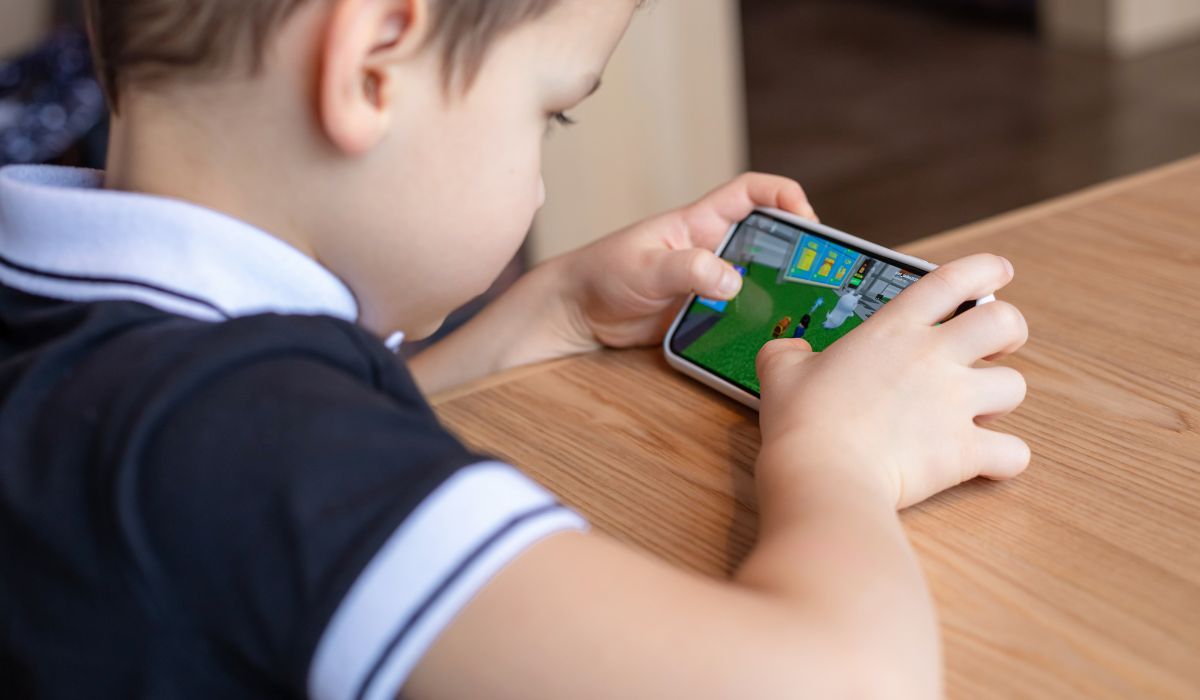
It’s the Account Restrictions mode which, when enabled, blocks other users from sending you messages, chatting in-app or chatting in-experience.
How to enable Account Restrictions
According to Roblox, this mode can be enabled on both computers and mobile devices
How to enable Account Restrictions on a computer:
- Log in to the account
- Click the gear icon located at the upper-right corner of the site
- Select the settings option indicated by the gear icon
- Select the privacy option
- In the Account Restrictions section, press the toggle button to turn on Account Restrictions
- The toggle will turn green, and the following message will be displayed “Account Restrictions is currently enabled”
- If you would like to disable Account Restrictions, simply press the toggle button again
Note: If the account has enabled a PIN, this will be needed to adjust the Account Restrictions settings.
How to enable Account Restrictions on a mobile device:
- Log in to the account in the app
- Click the more button indicated with three dots located at the lower-right corner of the page
- Select the settings option
- Select privacy in the menu
- In the Account Restrictions section, press the toggle button to turn on Account Restrictions
- The toggle will turn green, and the following message will be displayed: “Account Restrictions is currently enabled”
- If you would like to disable Account Restrictions, simply press the toggle button again
Other safety features parents may be missing
The study also found that there are other safety features that parents miss, with 36 per cent not having them enabled, or not knowing how.
These include:
- Content controls
- Blocked experiences
- Content labels, which allow parents to know what to expect from different experiences
- Communication controls
- Private servers
- Connections list
- Spending controls
- Screen time limits
See the website for more information on each and how to enable them.